Step-by-Step Guide: How to Connect Your ZKTeco Device to Biosensei

In this tutorial, you will learn how to link your ZKTeco time clock or access control device to the Biosensei platform in just a few minutes. Follow these steps to activate cloud synchronization and start managing your attendance in real-time.
Prerequisites
- Have an active account at app.biosensei.io.
- A ZKTeco device compatible with ADMS/Cloud.
- Stable internet connection (Ethernet or Wi-Fi) at the installation site.
Step 1: Start the process on the platform
First, log in to your Biosensei account. Once inside the main dashboard, go to the Devices section in the side menu.
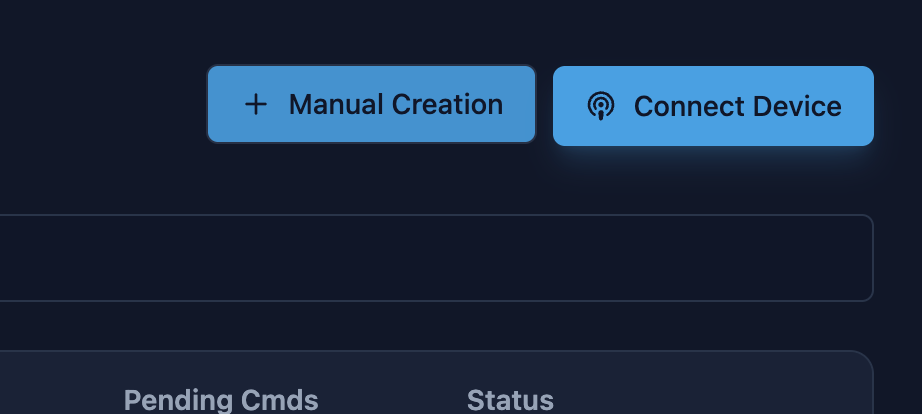
Click on the blue "Connect Device" button located in the top right corner of the screen.
Step 2: Internet Connection
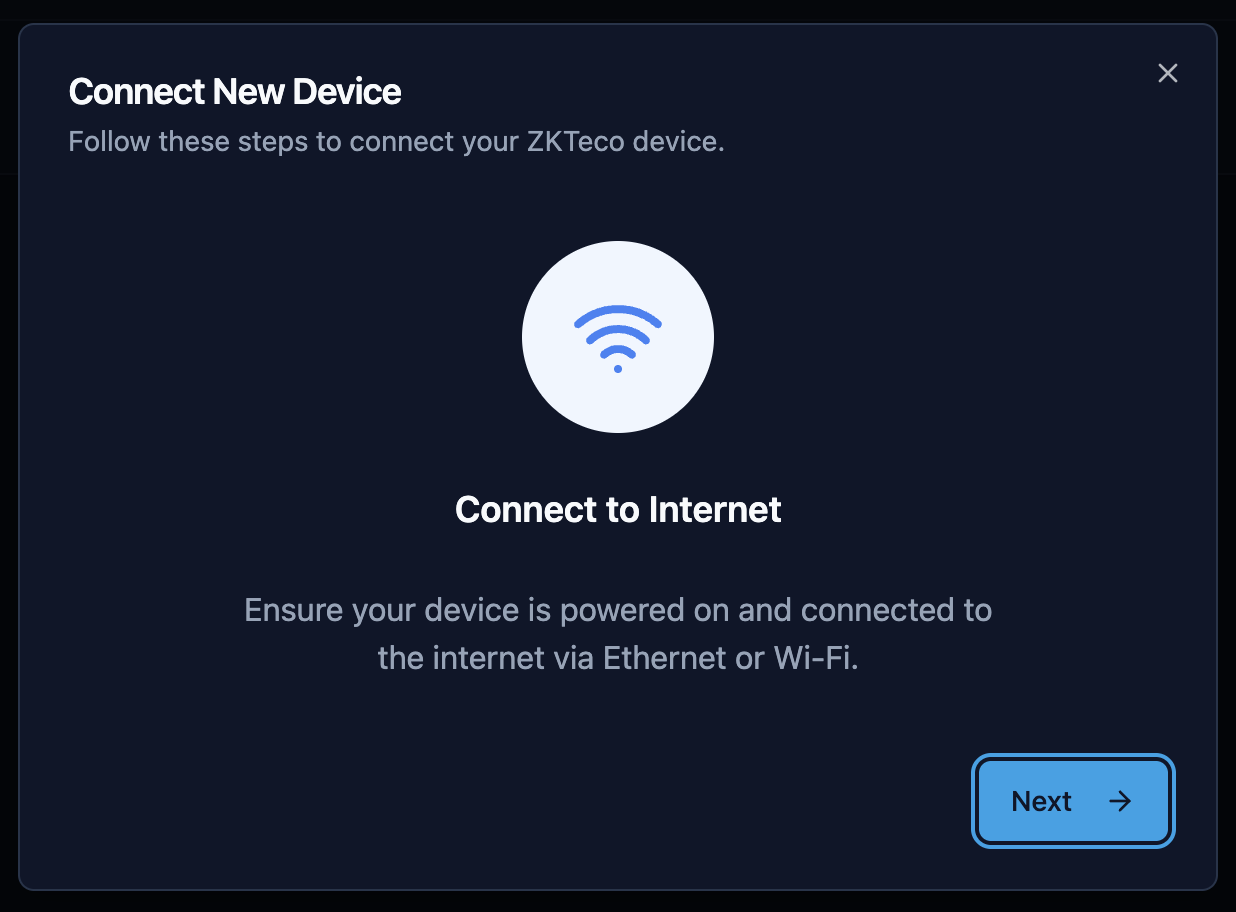
You will now see the connection wizard. Make sure your ZKTeco equipment is powered on and has internet access.
- Cable: Connect the Ethernet cable directly to the router.
- Wi-Fi: Configure the wireless network from the device menu.
Tip: If you are on a standard home or office network, make sure to enable DHCP in the device network settings. This will allow it to obtain an IP address automatically and avoid connection issues.
Step 3: Configure Cloud Server (ADMS)
This is the crucial step. You must point your device to the Biosensei servers.
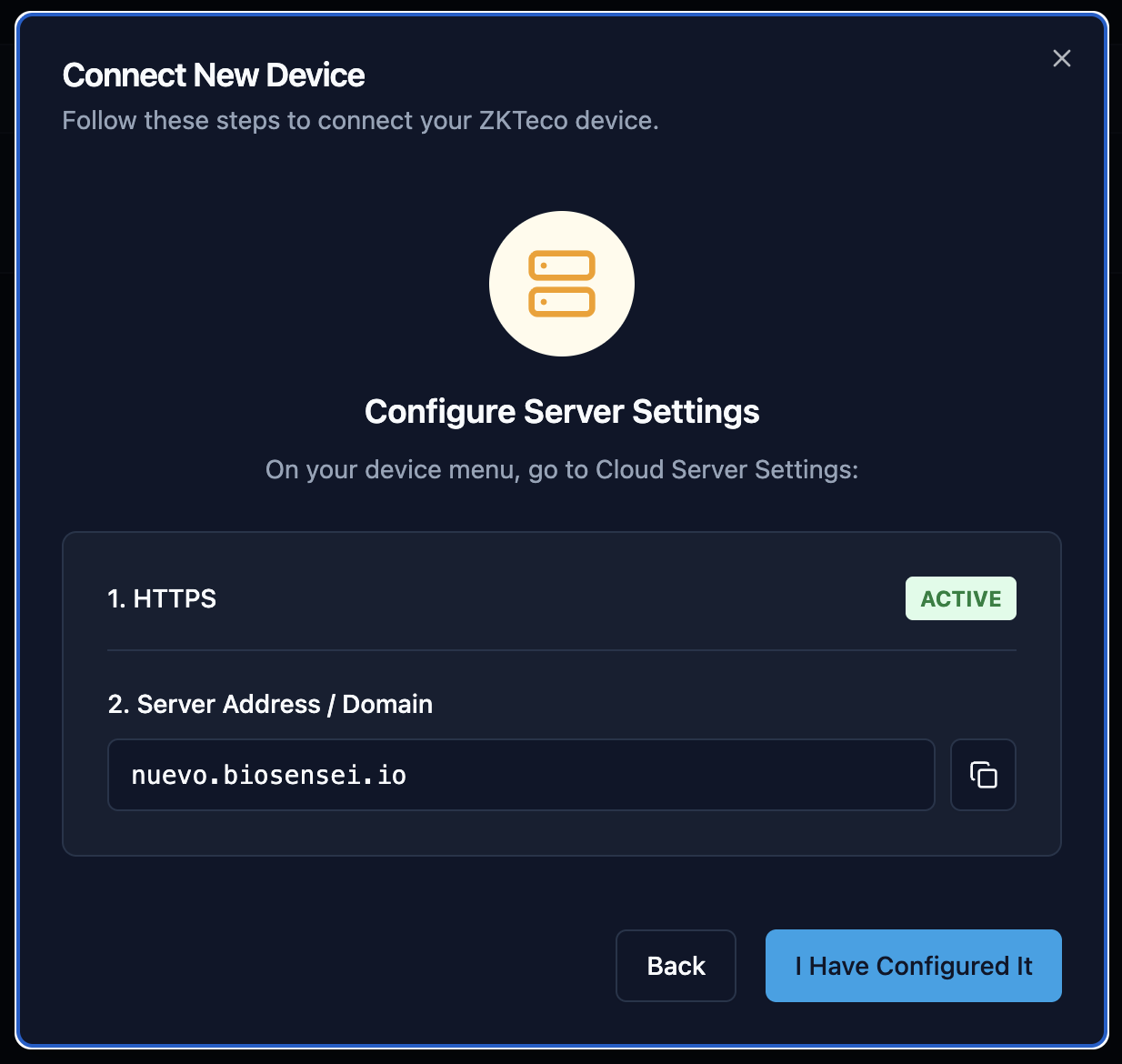
On the ZKTeco clock menu, navigate to Network > Cloud Server Settings and adjust the following:
- HTTPS: Enable it. This ensures information travels encrypted. Note: The device will restart when enabling this option.
- Server Address: Change the mode to "Domain Name".
- Server URL: Type the unique web address shown on the Biosensei screen in this step.
Important! The address has the format
[your_code].biosensei.io. In the example image you will seenew.biosensei.io, but you must type the one that appears on your own screen, as this address is unique to your workspace.
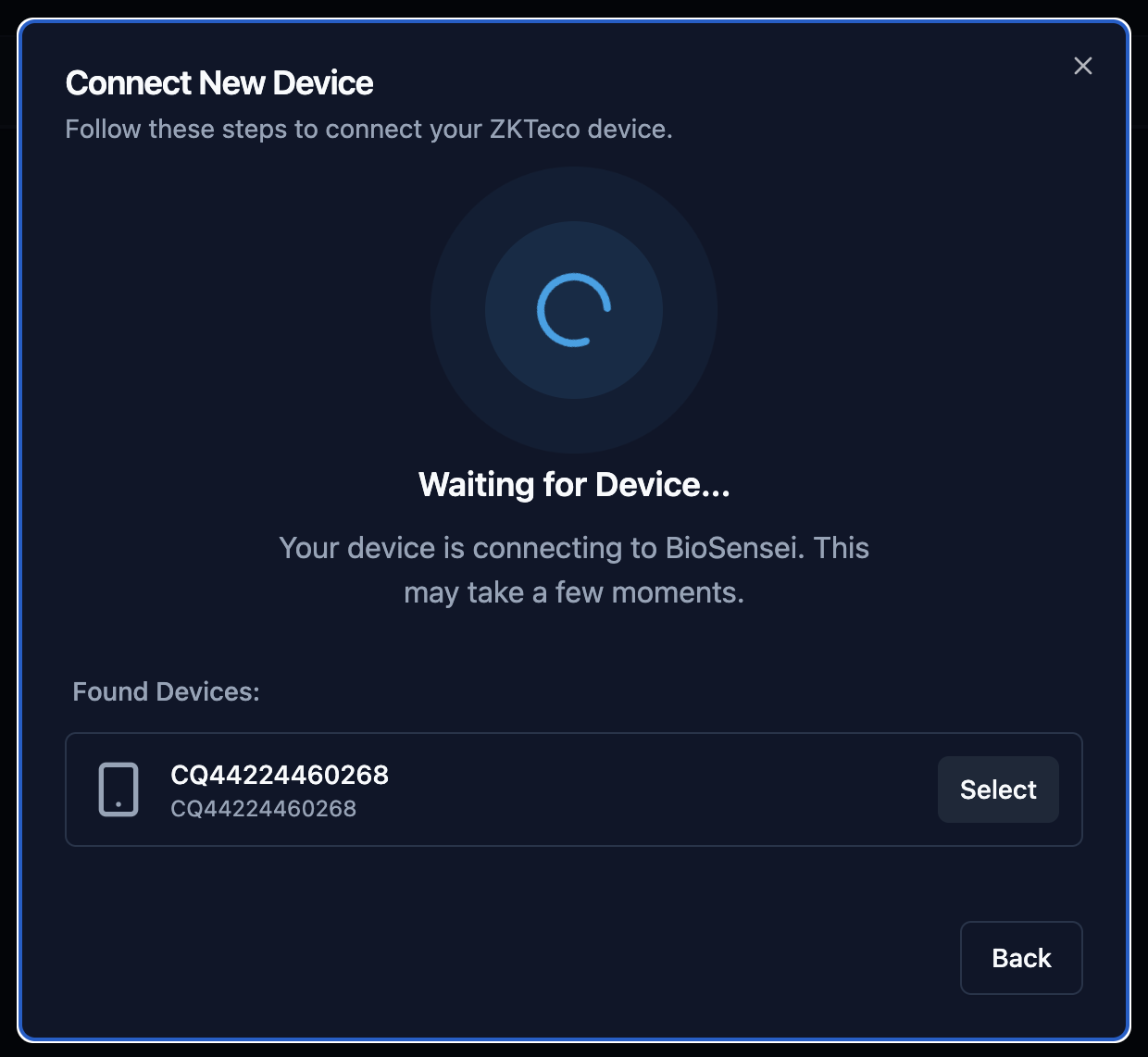
Step 4: Waiting for connection
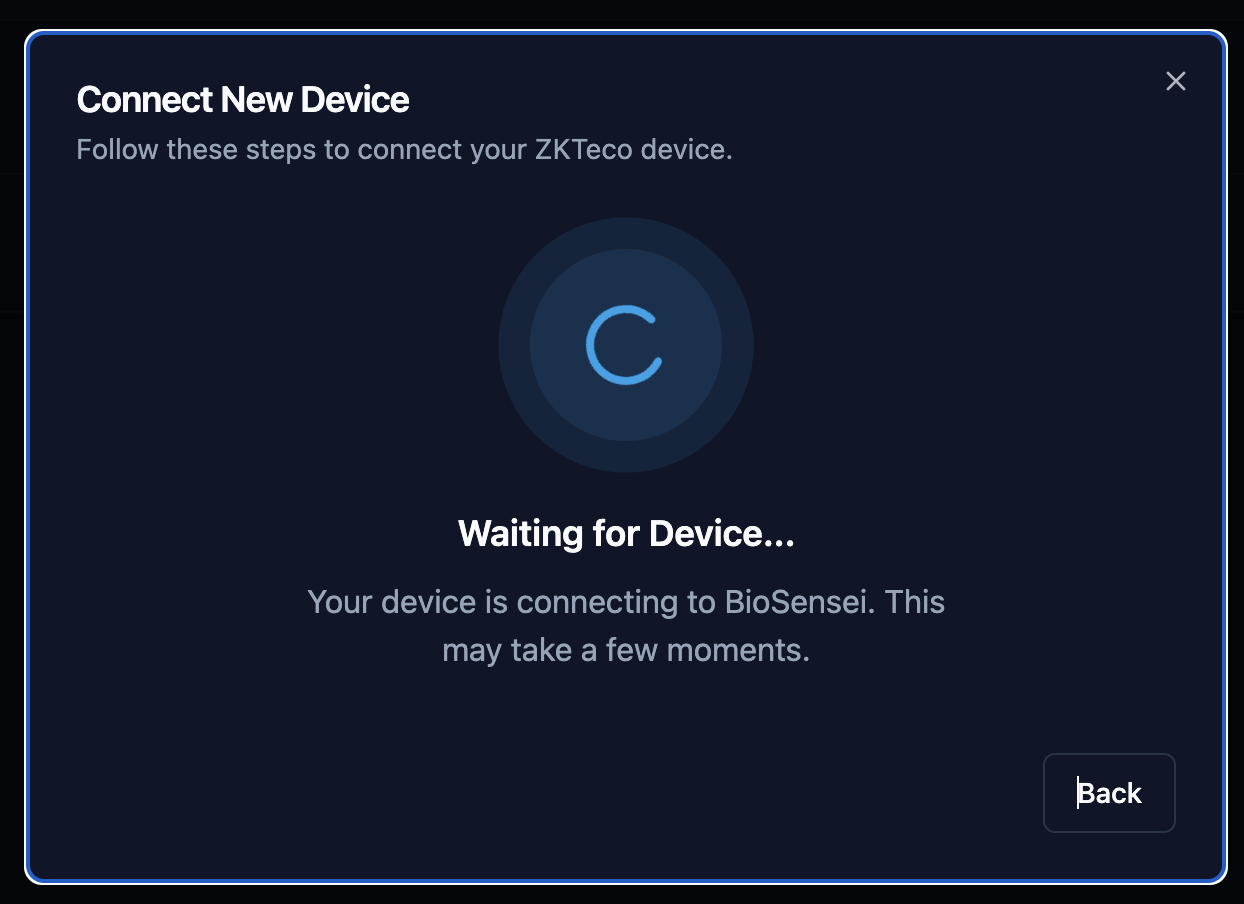
Once the physical device is configured, click the "Next" button on the web platform.
Biosensei will start "listening" to the network waiting for your device to report. This may take a few seconds while the device establishes contact with the cloud.
Step 5: Select your device
When the connection is established, Biosensei will detect the equipment and show it to you in a list.
Verify that the Serial Number (S/N) on the screen matches the label on the back of your ZKTeco machine. If correct, click the "Select" button.
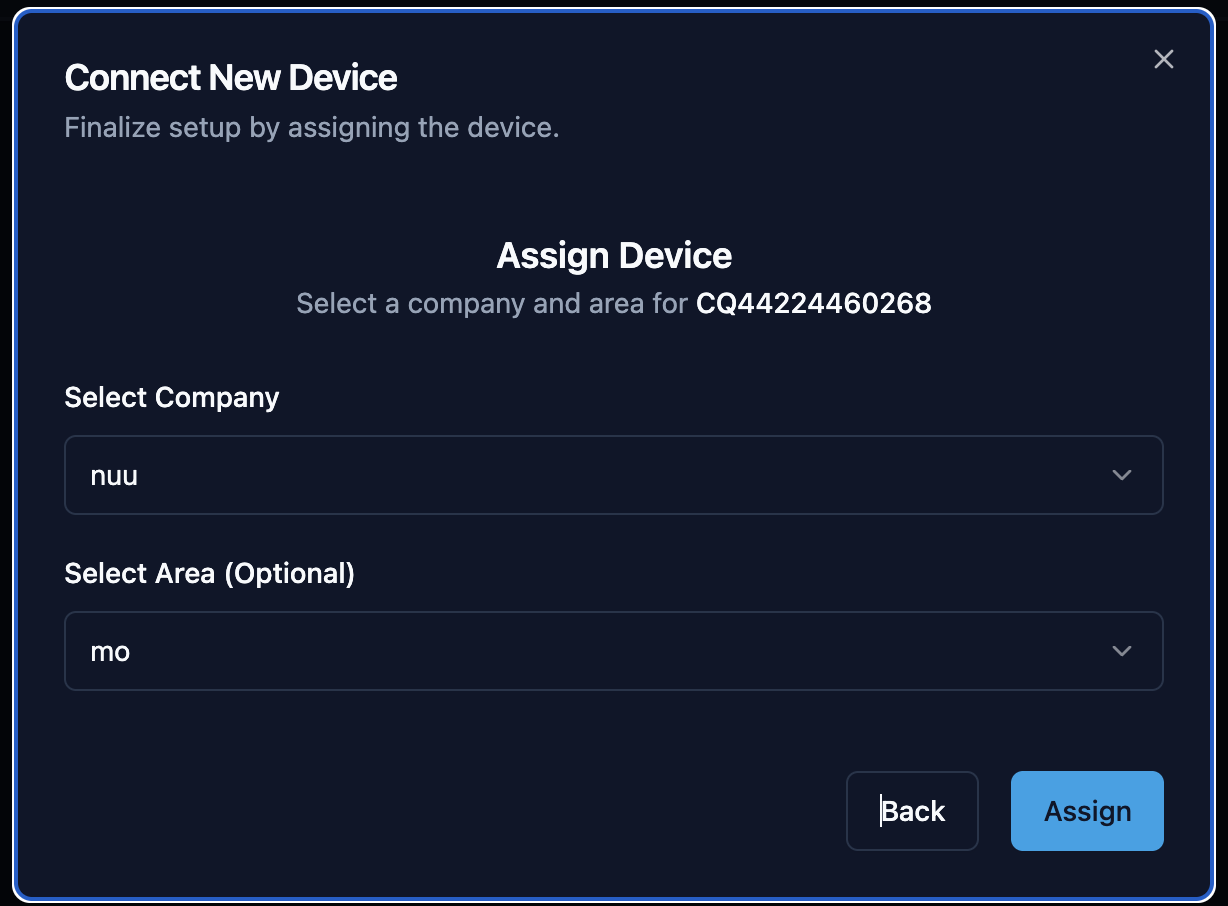
Step 6: Assign location
To keep your inventory organized, the system will ask you to assign this device to a Company and the corresponding Area (for example: Reception, Warehouse, Head Office).
Select the options and click "Assign".
Ready! Device Connected
Congratulations! Your device has been successfully registered and now appears "Online".
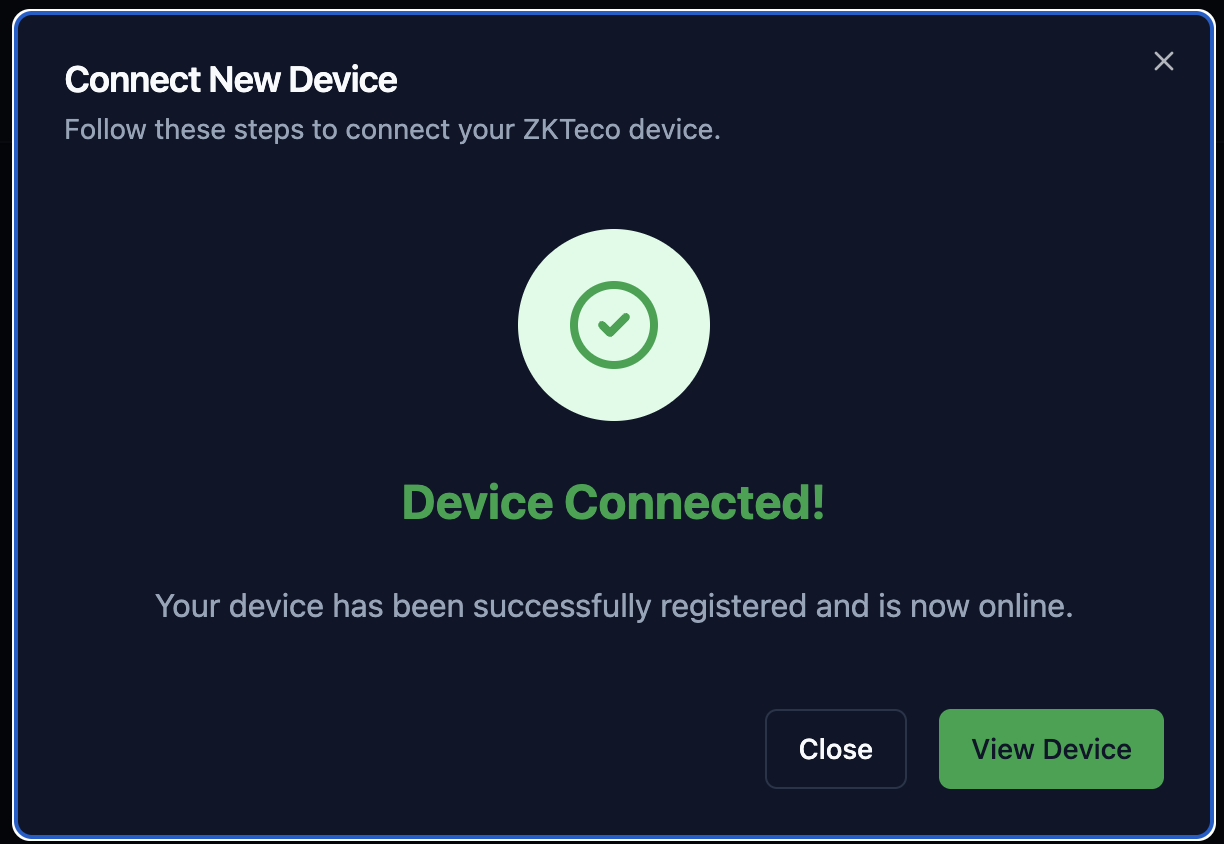
From now on, attendance records will automatically travel to the cloud.
Next steps:
- Access Control: If your equipment opens doors, you can proceed to configure Access Groups.
- User Management: You can now start sending users and fingerprints from the platform to the device. [Coming soon: User synchronization guide]